Reference idea
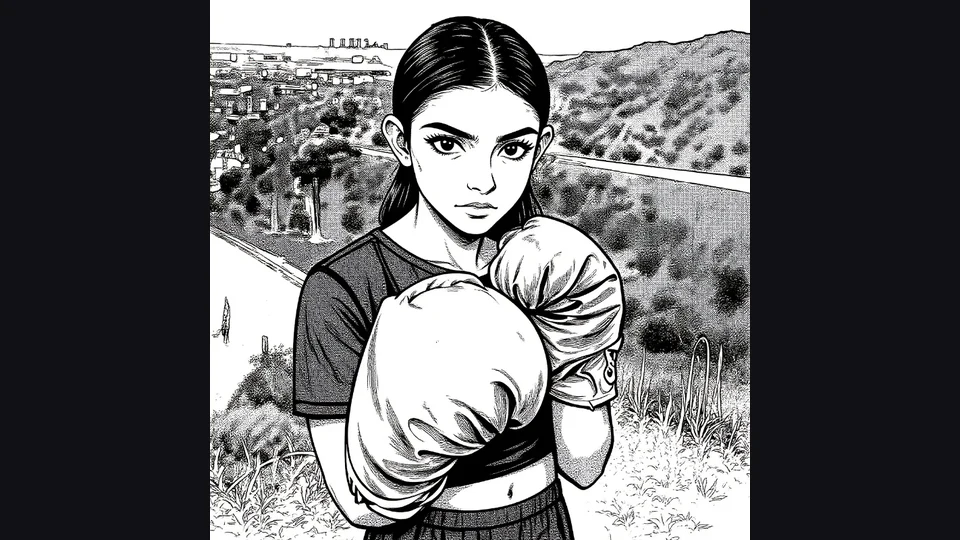
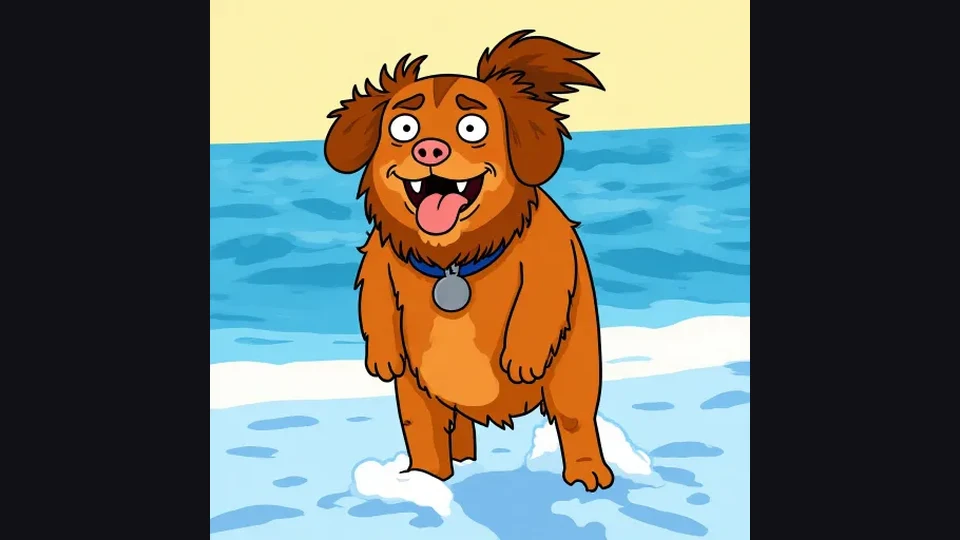
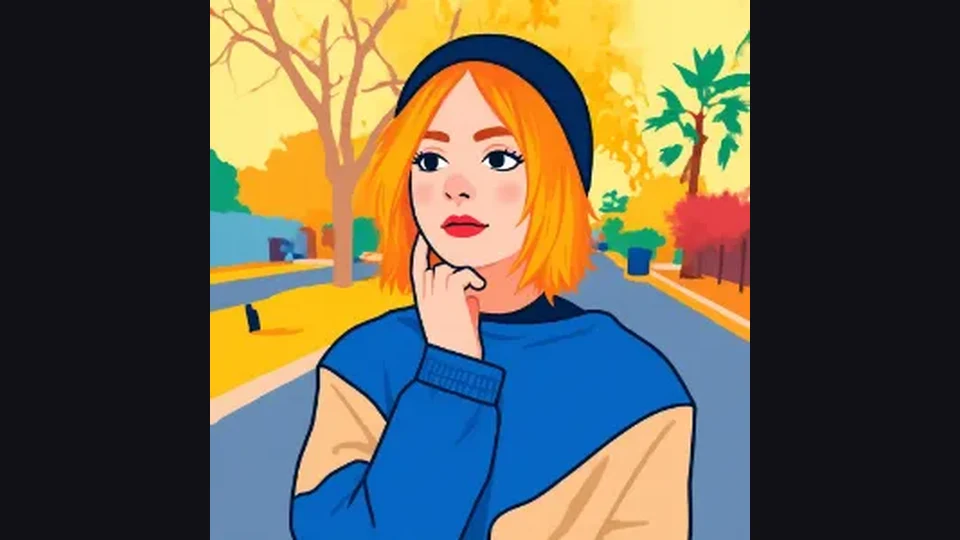
Example 1 of 1Use Cartoon to Realistic AI to reimagine a drawing as a photographic image. Upload your illustration, choose a lighting direction, and name the character details you want to preserve.
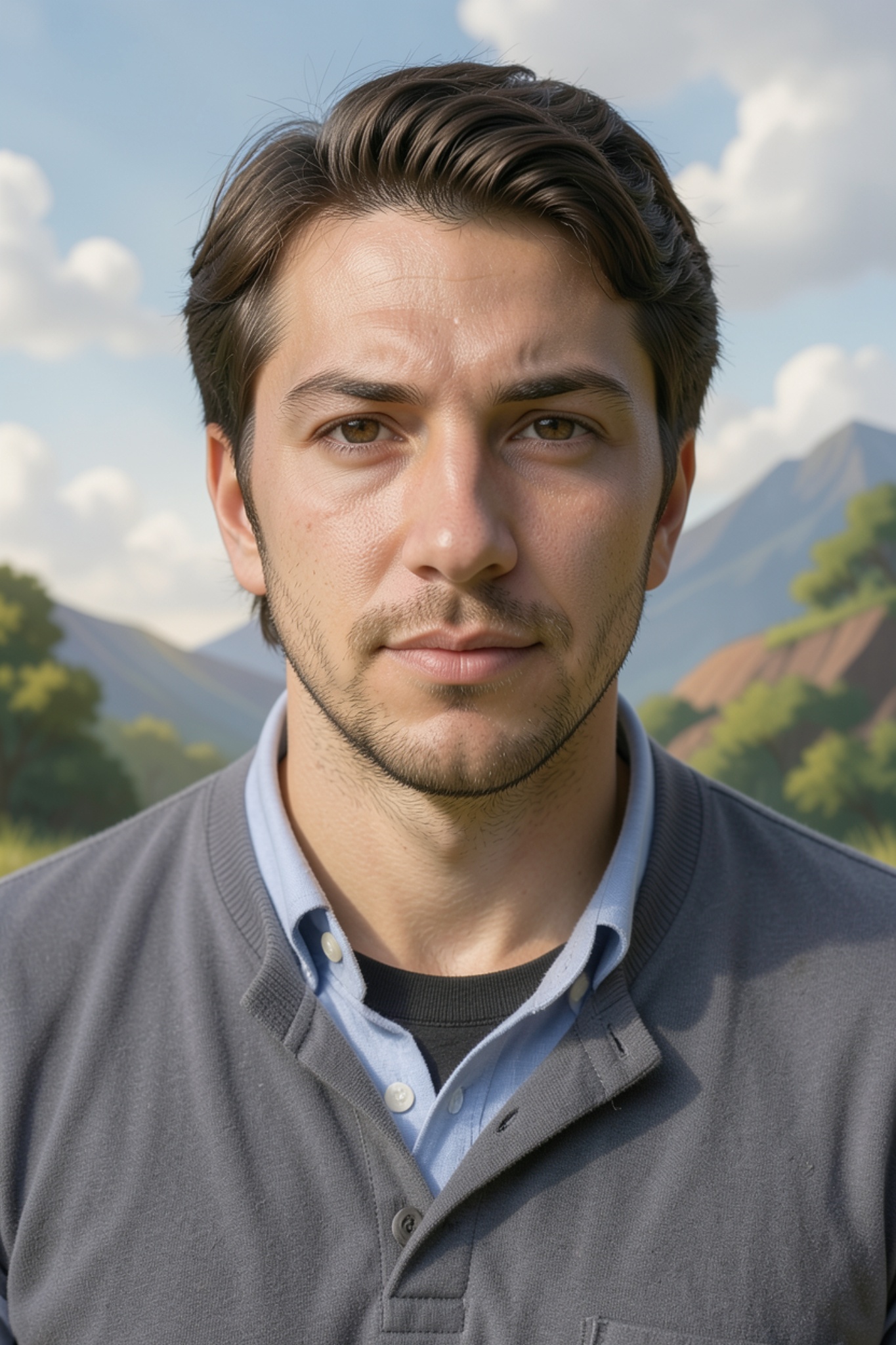
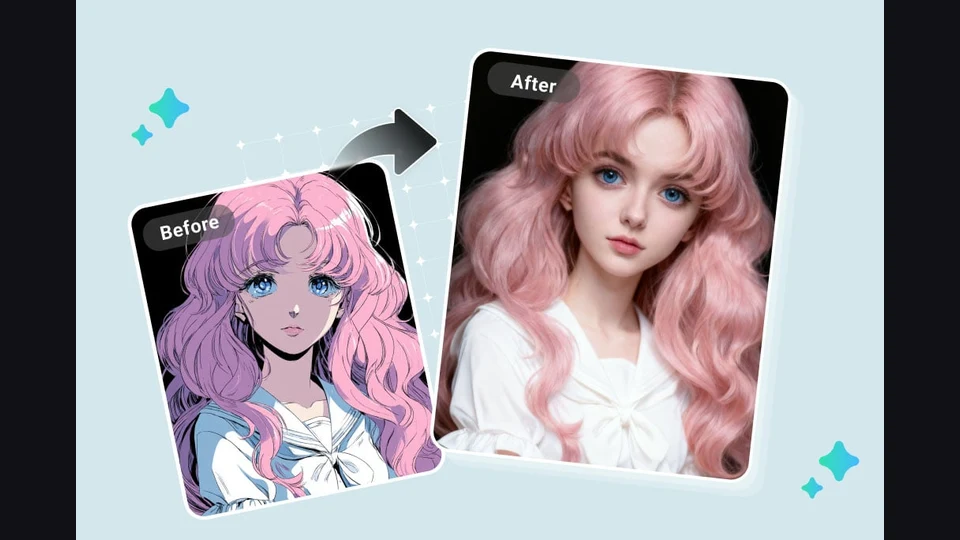
Compare the illustration with its photographic interpretation. Cartoon to Realistic AI translates drawn hair, clothing, and scenery into plausible textures and lighting, guided by the reference subject and composition.
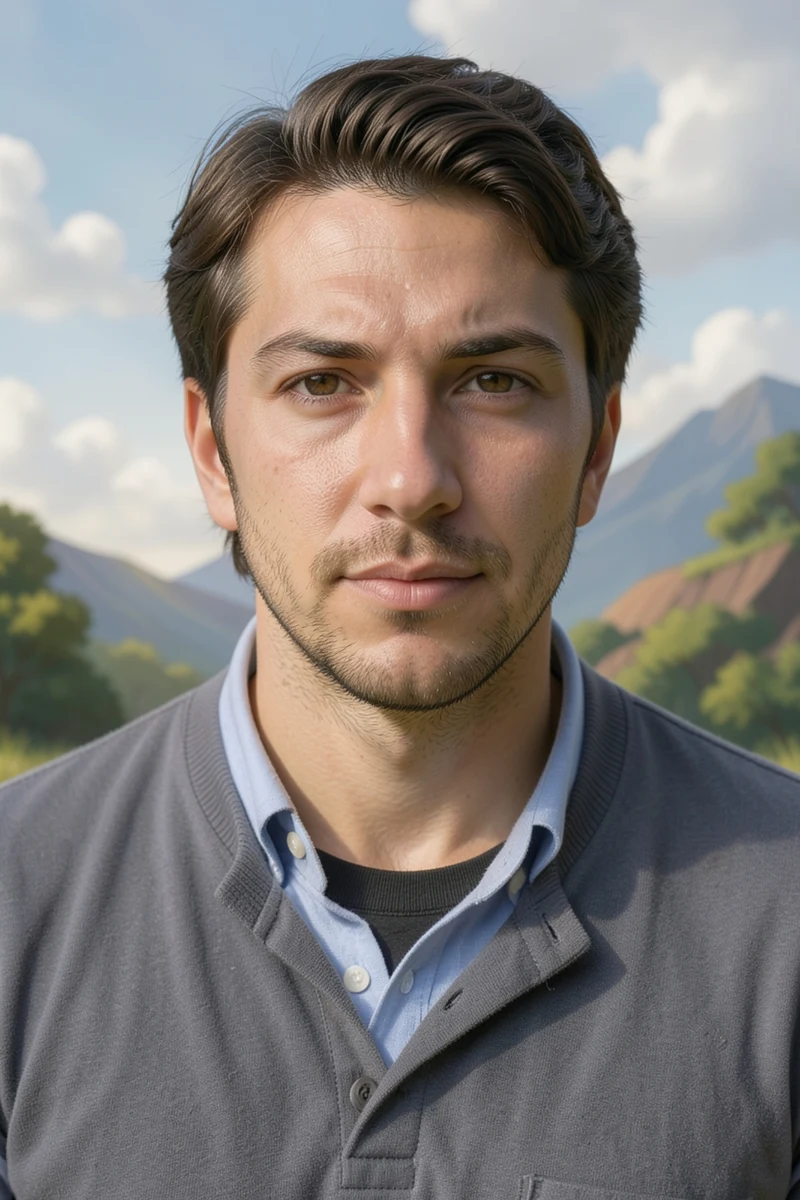
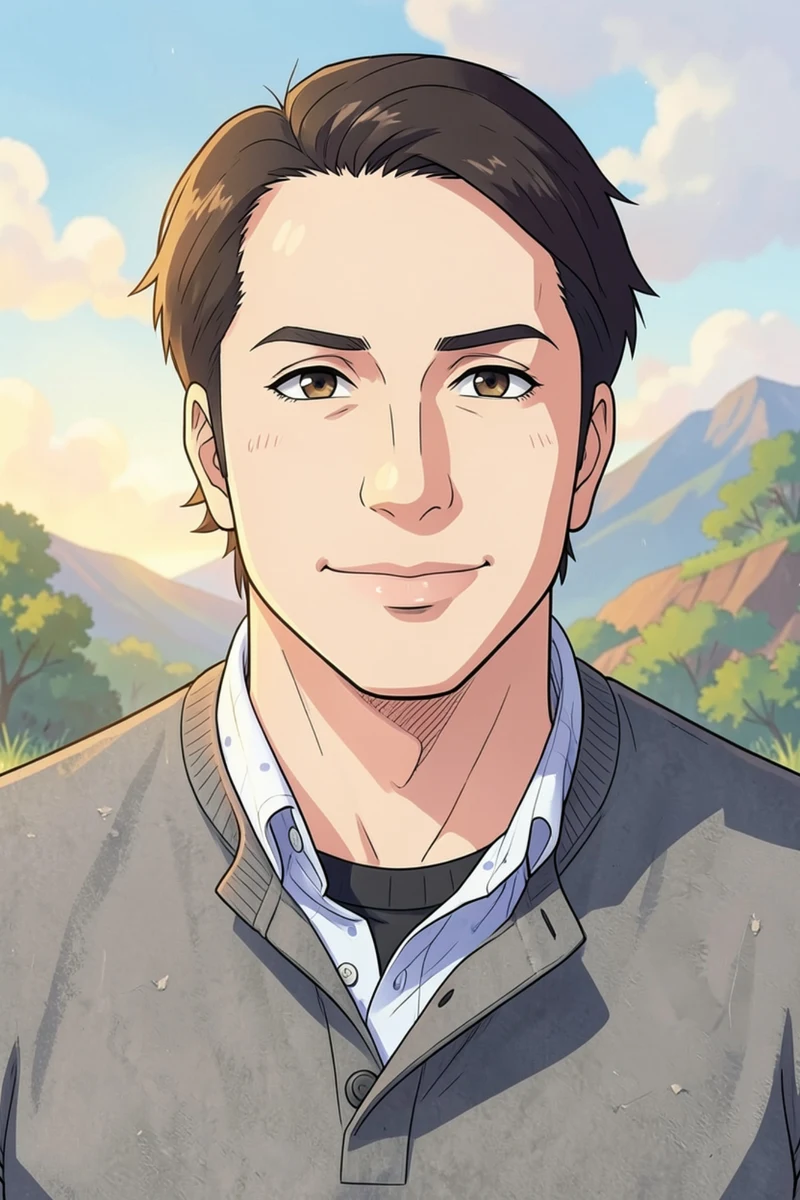
Drag the slider to compare the drawing and the finished photo-style render. Each result is a fresh AI interpretation, not a real photograph of an actual person.
Cartoon to Realistic AI lets you explore how a drawn subject might look with photographic materials and lighting. Use the interpretation to develop a visual idea.
Keep distinctive hair, clothing, colors, and props as visual anchors. These cues connect a photographic interpretation to the character you started with.
See how drawn surfaces could translate into skin, fabric, metal, or hair. Inspect textures and anatomy together when judging whether the interpretation feels believable.
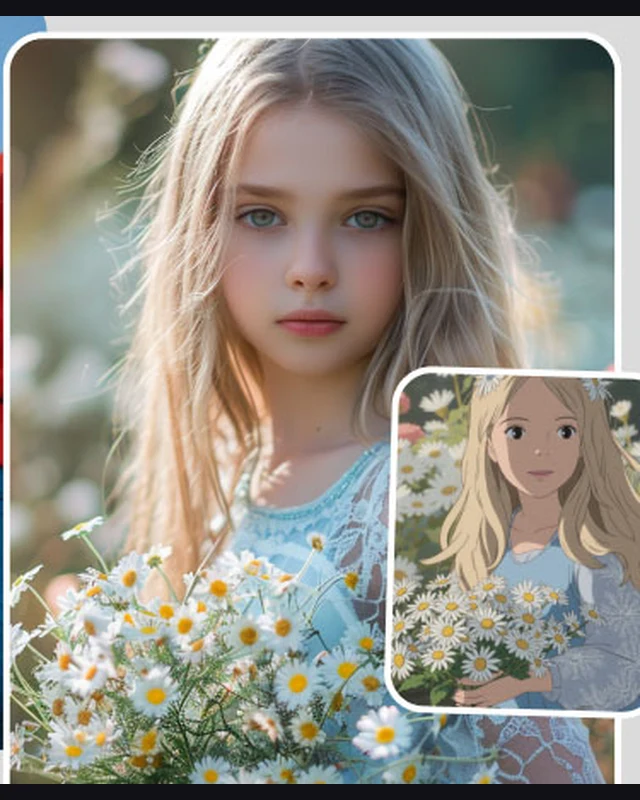
Use a photographic interpretation as a visual concept for a character or scene. Lighting and framing help communicate atmosphere without explaining every detail in words.
Keep the details you like and edit one distracting element. Separate saved versions let you compare an earlier interpretation with a new lighting or background treatment.
Cartoon to Realistic AI uses your drawing as a reference for the subject and composition. Name the outfit, pose, colors, and objects to retain. These visual anchors give the transformation direction while photographic textures replace illustrated outlines.
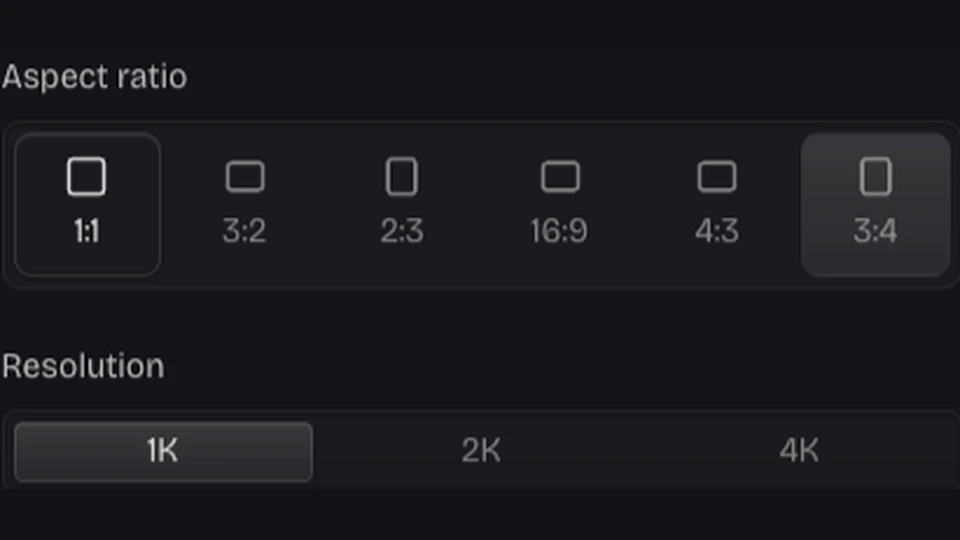
Switch between natural daylight, studio lighting, or cinematic photography. Set your background, aspect ratio, and resolution up front—and if you change the framing, mention which details from the drawing must stay in view.
Upload a clean cartoon, comic, or anime drawing. Clear outlines, visible outfits, and uncluttered framing give the model much stronger visual cues.
Pick a lighting style, background setting, aspect ratio, and resolution. Add a quick note on textures or mood if needed, then check the credit cost before running.
Compare the finished portrait against your original drawing. Check the facial features, fabric textures, and framing, then download it or click Edit to refine one detail.
It makes drawn pictures look photographic, including a still frame from an animated scene. Your reference guides the interpretation. The output is a new generated image, rather than a recovered original photograph or a real identity.
Upload a clear JPG, PNG, or WebP drawing, up to 10 MB per file. You can add up to three references. Use one main image and explain what any additional references should contribute.
Yes—anime portraits work well as references. It translates hair, eyes, and outfits into photographic textures while keeping the character recognizable, though stylized anime proportions can shift, so give the face and hands a quick look afterward.
Your reference and directions guide the subject, colors, outfit, and composition. Explicitly name important accessories or objects. Generated details can change when a drawing is ambiguous, so review the result before choosing a version.
You can choose natural, studio, or cinematic photography. Natural leans into everyday daylight, studio gives soft controlled lighting, and cinematic adds richer contrast and shallow depth of field.
You can keep the reference background, simplify it, or swap in a solid-color backdrop. If you want a specific new setting, describe it in the optional prompt box.
No—once you upload a drawing, built-in defaults handle the realistic conversion on their own. Add a short prompt only when you want to lock in specific fabrics, lighting, or props.
New accounts get a one-time 40-credit gift. Each generation or edit costs 40 credits at 1K, 50 at 2K, or 80 at 4K—test your lighting and framing at 1K first before scaling up.
Choose Edit on the completed image. Describe a focused change to lighting, clothing, or another detail, and name what to preserve. A separately charged request creates a new version while keeping the earlier result in your history.
Sign in to the same account and open My work. Submitted prompts, settings, and finished renders stay available for your plan's retention window, while unsubmitted drafts stay only in your current browser tab.

Give Cartoon to Realistic AI a clear illustration and a lighting direction. Explore a photographic interpretation, inspect the details, and keep the version that fits your idea.
Make your image realistic